Getting started with Accounts Machine
To get to your first VAT filing follow these steps:
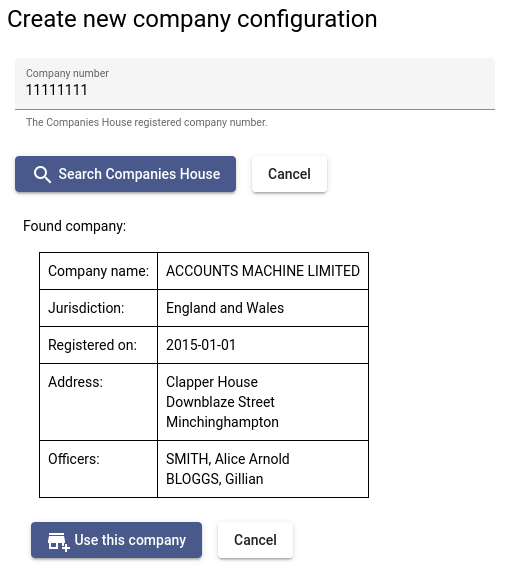
Before you can do anything you need to create a company configuration. We've made this easy, you punch in your company number, and a lot of the information is extracted from Companies House.
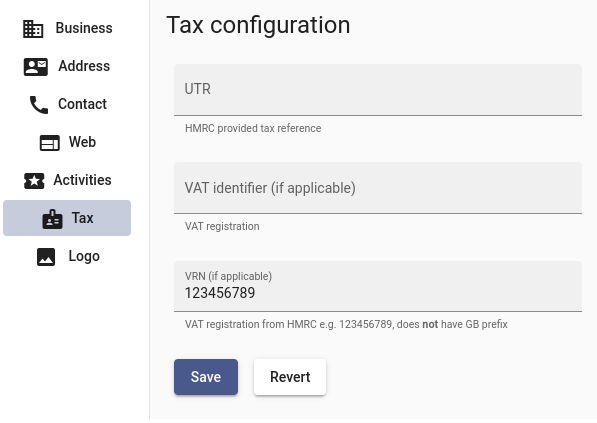
For a VAT return, you don't need to complete the entire record. You do need to go to the Tax section and fill in your VAT VRN which is used in communication with HMRC.
Next you need to link Accounts Machine with your HMRC VAT account. Go to the Status tab, click on the tick in the VAT column in the table row for your company. This shows you the VAT status for your company, and at this stage it will show that the HMRC VAT connection has not been set up.
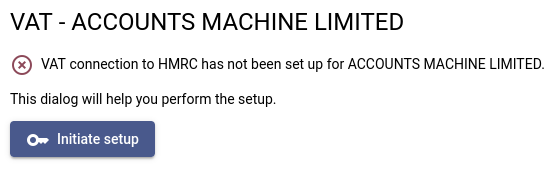
Clicking Initiate setup initiates the connection to HMRC. You will be taken to the HMRC web site and prompted to enter your Government Gateway ID. You will then be asked to confirm that you allow Accounts Machine to access your VAT account and file returns on your behalf.
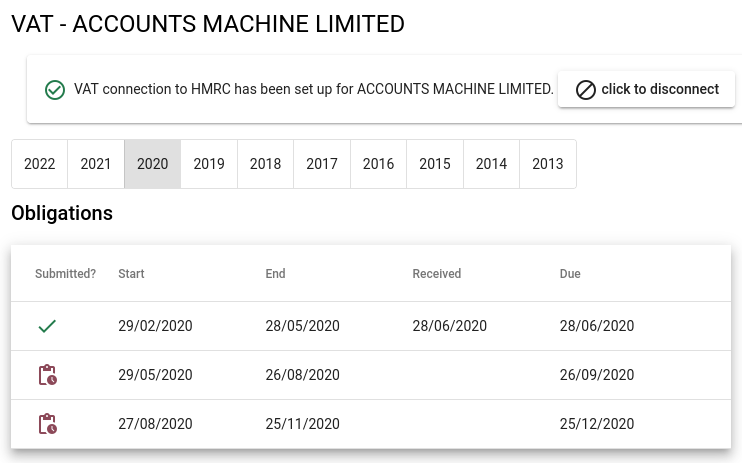
Once that is set up, you should be able to see the status of your VAT returns on the Status page by going to the VAT status screen as you did in the previous step. In particular you will be able to see any VAT return periods which are outstanding.
Next you need to go to the Books tab and upload your accounting books. This should be a GnuCash SQLite or CSV file. There are articles about GnuCash or CSV file formats which provide more information. Click on the upward arrow icon to go to the accounting books upload page.
Depending on how your accounting books are setup, you may need to configure the mapping between the 9 boxes which make up a VAT return, and the different accounts in your accounting book file. The VAT accounting boxes are discussed on the VAT accounting page. The process for mapping VAT boxes to your accounts is described on the VAT box mapping page.
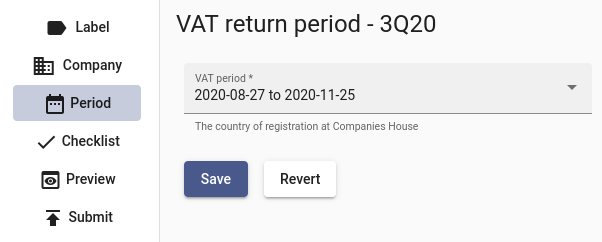
You are now ready to create a VAT return on the Filing page. Select Create VAT Filing and step through the workflow, selecting your company and VAT return period.
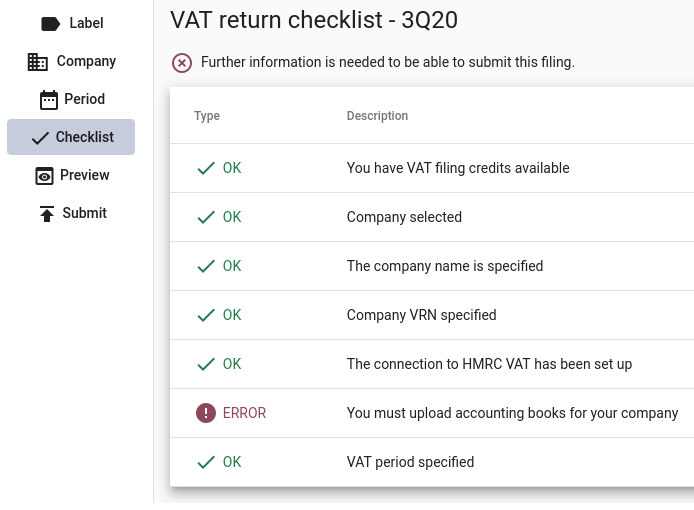
At the checklist page, you can see if your VAT return is ready to file. There are links to other parts of the application to c omplete any missing information.
In order to file a VAT return you need filing credits. Go to the Filing tab and select Manage Credits. Here you can check your credit balance and buy credits on the Purchase tab using a payment card. (Credits are currently free, no card needed).
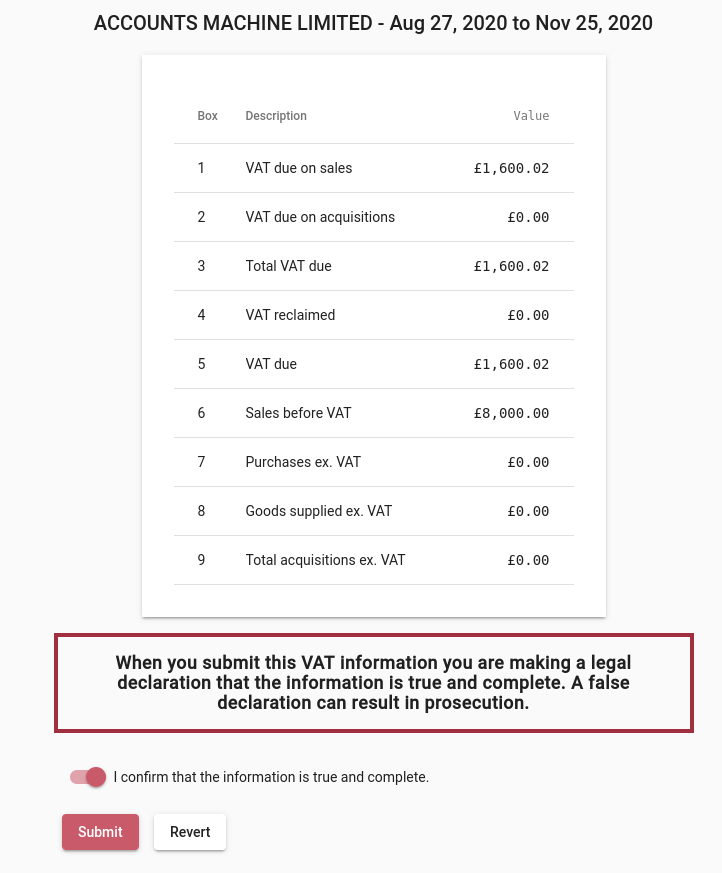
If you want a full receipt for your purchase, you may want to complete the billing information on the Profile tab as this is included on the receipt. When you are happy with your VAT return, you can go to the Filing tab select your filing, and select the Submit screen to submit it.
See also: